
Encrypt Folders in Windows 10
All-in-one folder encryption tool to encrypt, hide, shred, lock folders on Windows 10.
2 simples steps to lock folders, files and hard drives.
Use advanced industry-standard AES 256 bit encryption technology.
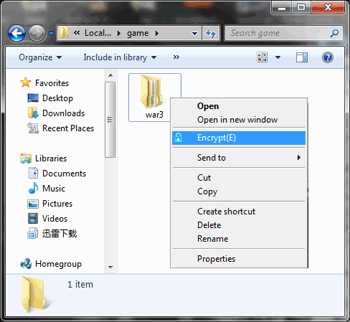
Apply Right-Click Menu and enable you to encrypt folders and files instantly.
Shred and delete unwanted files for good.
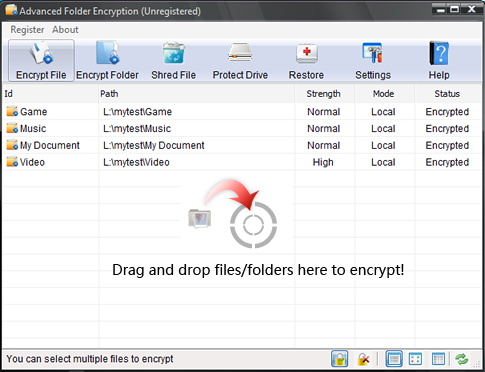
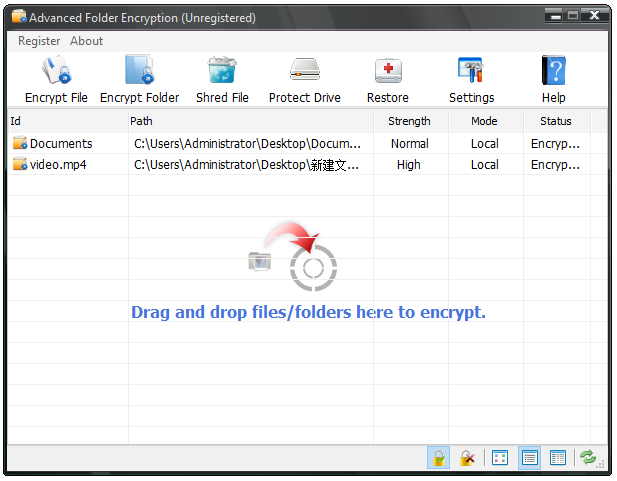
View the status of all files and folders that display protected files in the main window.
How to Encrypt Folders on Windows 10
Encrypt folders on your Windows 10 computer have never been easier than now.
Why Use Our Windows 10 Folder Encryption?
Advanced Folder Encryption is an ultimate data security solution that allows you to lock folders instantly with military standard 256-bit AES on-the-fly encryption.
Locking Storage Devices
Encrypt folder, file, an entire local hard drive, USB flash drive, memory stick, jump drive, pen drive, thumb drive, memory card, and any other type of portable disk.
Lock Folders and Files
Advanced Folder Encryption utilizes 256-bit AES encryption to password protect your important folders or files, which means you stay in total control of your data—only YOU will be able to access your encrypted folders and files.
Instantly Encryption
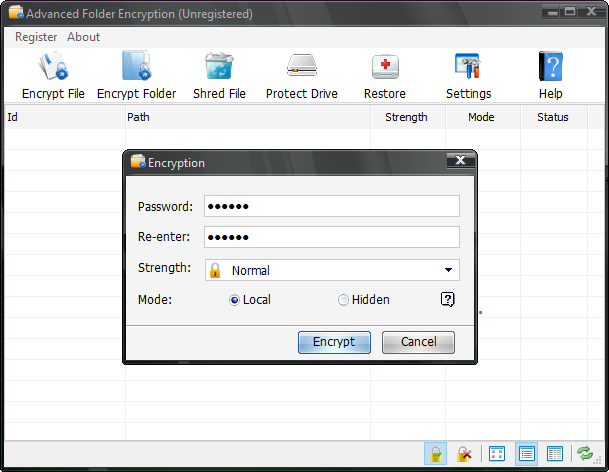
Password protects sensitive files from unwanted access by blocking unauthorized access and disabling visibility of files, folders, and local drives. Achieve encryption in very simple steps.
Data Removal
With File Shredder, you could completely remove unwanted files and sensitive data from your hard drive by overwriting it several times with the US DOD 5220.22-M erasure method.
Separate Passwords
Allow you to set an independent password for each folder, which is very helpful if you need to share your folders with different users.
Recovery Center
Once you forget the password, you can retrieve the password of the encrypted folder through the recovery center.
Integrated Locker List Screen
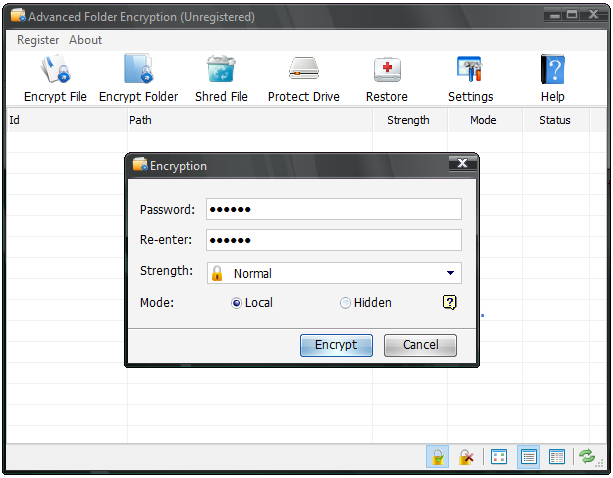
With a built-in main encrypt files list screen, Advanced Folder Encryption explicitly displays the status of contents and allows you decrypt, change password, open parent directory for password protected folders/file, optionally, switch display mode as you like.
Password-protect Folder and Lock Folder in Safe-Mode
Password folder and protect private data even in Safe Mode! This is a matchless feature and ensures maximum password protection of your data. Your locked folders and files are 100% secure.
FAQs of Advanced Folder Encryption
Restore Center allow registered users to recover their password. (But only folders protected with “Normal” security level can be restored. Even us won’t be al be to unprotect your folders if your choose to Scramble or Encrypt your folder)
Actually it’s just a shortcut for you to decrypt. You can run the program and decrypt your folder from the main Window.
Everyone can benefit from Advanced Folder Encryption. Everyone, from individuals to corporations, wants be reassured that their confidential information remains confidential. Advanced Folder Encryption can provide that reassurance.
This folder locker software allows you to lock, secure, encrypt and hide any media that you can read and write to: hard disk, floppy, flash memory, USB or Firewire portable drives, etc.
There is no limit to the size of files nor to the total number of files that may be lock/scramble/encrypt at one time.
With Advanced Folder Encryption option, secret files are highly secure. It uses 256-bit Blowfish Encryption which is a highly secure method to protect sensitive files.
It uses three different locking methods to secure your files and folders, protecting files at kernel level, Windows Explorer level and (real) DOS Mode Level. However, it’s less secure than encryption.
Yes. Advanced Folder Encryption supports all kinds of disk types like FAT16, FAT32, NTFS; EFS.
Yes. Advanced Folder Encryption can be used on Windows Vista/2003/XP/2000.
Registered users will get:No nag screens, no functionality limits.
Free upgrade for usual update, Discount upgrade for super improvement.
Life-time priority customer support.
Feature requests will be welcome.
Registered users of Advanced Folder Encryption are immediately eligible for lifetime upgrades and support. Once you purchase it you can use it for as long as you like and if a new version is released you can get that too. Nothing more to pay ever.
Yes. Our customer support is free for all our users. If you have questions or comments about Advanced Folder Encryption, please contact us at admin@KakaSoft.com
What People Are Saying

Advance folder encryption protected my files with the best encryption. Secured my folders with such high security. Better to secure than prevent.
– Sam

This is such effective software. I am glad that my folder is secured with this KakaSoft tool. It has an amazing user-friendly interface and is much easy to learn. I am not into tech stuff that much but this protected my folders within minutes. It required minimum effort. Great tool.
– Tracey

One of the software reviews suggested this one and I found it really helpful to save my folders. It is so convenient to have all your saved folders in one place to manage.
– Rosalyn

This advanced folder encryption is such a great helping hand to have. Recommended.
– Vick
Tips & tricks for Folder Encryption on Windows 10
How to Hide a Hard Drive?
How to Lock Drive in Windows 10?
How to Put a Password on a Folder without software?
How to Lock a Folder on a Mac?
How to Encrypt a Folder on Windows PC?
How to Encrypt External Hard Drive on Windows/Mac/Linux?
How to Solve the “Encrypt Option Greyed Out” Error on Windows?
How to Hide and Lock Hard Disk Drives on Computer?
Screenshots of Advanced Folder Encryption

file-and-encrypt-folder 
input-password 
settings-general 
settings-security 
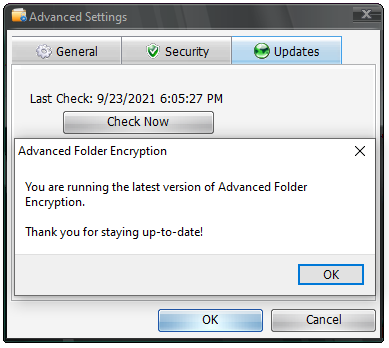
settings-updates-frequency 
settings-updates-check-now 
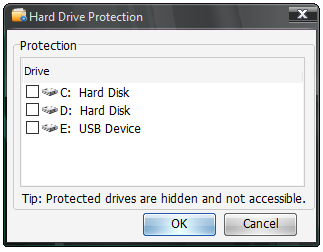
protect-drive 
decryption-correct-password
Top 10 Folder Encryption Software for Windows 10
In today’s world, everyone needs to be more careful while sharing their personal information in the online world. If you are using any website, check if it is fully secure because there is always a fear of private data getting leaked. It is crucial to use encryption software to protect your information. Sometimes, the best way to keep hackers out is by having an array of security tools at your disposal. With malware and online attacks evolving every day, you need as many options for protection against cybercrime that continue to evolve with it! This is where Folder encryption is needed. You can protect your sensitive and valuable data with the help of Folder encryption software. It can be daunting to choose the best encryption software, that is why we have eased this task for you. Among a plethora of third party software, we have picked out the top ten file encryption software.
Here is a list of top10 great folder encryption software for windows 10.
AES Crypt
This easy-to-use software encrypts your file using an Advanced Encryption Standard (AES). With AES installed on your laptops or PCs, you don’t have to worry about your data security as it does not open up without a password. It can secure the most sensitive files in your PCs by using a 256-bit encryption algorithm. After installing software, choose the file you want to encrypt, right-click on those files, and tap AES encryption. A pop-up window or a prompt will appear on your PC that will require you to enter a password. You have to complete the encryption process by clicking “OK”.
Veracrypt
Are you looking for free encryption key software? If yes, keep Veracrypt at the top of your list because it is an open-source free-grade enterprise software having various key features. It has an additional benefit in case you want to secure your external storage (USB sticks). Veracrypt is compatible with Windows, Mac, Linux, etc. It can stand strong to hack or brute-force attacks.
Easy Lock
The easy lock also uses 256-bit encryption mode as AES Crypt uses. It is a cross-platform solution that offers you the required encryption that can protect your valuable information. If you worry about your confidential information, install EasyLock and remain worry-free about your USB storage equipment, and data uploaded to the cloud. This is easy to use software tool having an interactive interface. You can drag and drop the file to Easy lock. In case, you have to transfer the encrypted data, You can do it via USB. In this way, you can encrypt contents to encrypt data on your file or folder in Windows.
idoo File Encryption
idoo File encryption software comes with a help manual to help you out in any situation. It prevents any unwanted access to your folders. It can encrypt file formats of almost all types. It quickly notifies you when someone repeatedly tries to intrude on your encrypted files. This program offers plenty of options for users. Without investing too much, it can offer the best encryption service.
AxCrypt
You can protect files using AxCrypt software. It’s also easy enough for beginners as there is no need for technical knowledge. Both Right-click integration into windows explorer as well as double-clicking will work seamlessly to allow quick access when needed most while maintaining security at all times. Even this software offers AES -128 file Encryption, and you can use in it 11 different languages. Isn’t it cool! There is nothing hard in installing the software. You can install it from the Google play store. This program requires absolutely nothing else but takes care of everything automatically so, users need not worry.
True Crypt
It is free and open-source software that can prevent your folders from malware. You can easily install it on Windows 10, Linux, Mac, etc. Post-installation of TrueCrypt, your desired data gets encrypted and avoids human intervention. Once your file or data is encrypted, you can store it as you want. You can only decrypt the files with the proper password. The software comes with a help manual that can guide you to use this simple program. It uses encryption algorithms like Twofish, Serpent, etc. There are three ways to secure your data using this software: special, password, or both.
FlashCrypt
What is better than having your data secured with a free program? It is the best thing that can ever happen to those who worry about data security. With military-grade security, FlashCrypt never fails to provide the desired encryption. US Government considers FlashCrypt to be the best software for top-level secrets protection. There is no difficulty, and the installation process is also hassle-free. If you forget your set passwords, it provides you with a password recovery option.
FreeOTFE
Free OTFE is fly-on-the-disk (OTFE). It is a free and open-source secure program that can protect all your valuable folders on the PC. You can download it on windows 10. The pros are that it allows you to create virtual disks on your PC. You can execute these virtual disks normally, however, the data on these files will be securely encrypted. If you are a newbie or a novice in technicalities, you can still enjoy the encryption features.
Free Hide Folders
It is free to install Free Hidden Folders in Windows 10, and no one can access, delete or search that data. Free Hide Folders is an easy-to-use software, and your folders will remain in a safe mode. Do you know the best part? Well, it is that you can encrypt a file in it and restrain anybody from accessing it.
Encryptcare
Those who strive hard to protect their personal information and documents from getting leaked can use Encrypt care. This software is free and can be installed on Windows 10 Operating System. Encryptcare can offer numerous benefits, it creates and verifies checksums on your files. You can even generate them with multiple items at once.